
How to Sign and Lock a Note in JotPsych
JotPsych now supports note signing, allowing you to finalize a version of your note for compliance or record-keeping — while still giving you flexibility to make future edits.
What Does Signing a Note Do?
Preserves a signed version of the note — it’s locked and cannot be changed.
Can be used for audit, billing, legal, and clinical purposes
Meets all regulatory requirements for note finalization - similar to your EHR
Enables future edits to the note via addendum
Keeps track of any amendments made once the note is signed
The original signed version is saved separately for audit and documentation purposes
How to Set Up Note Signing
Finding where to set up Note Signing
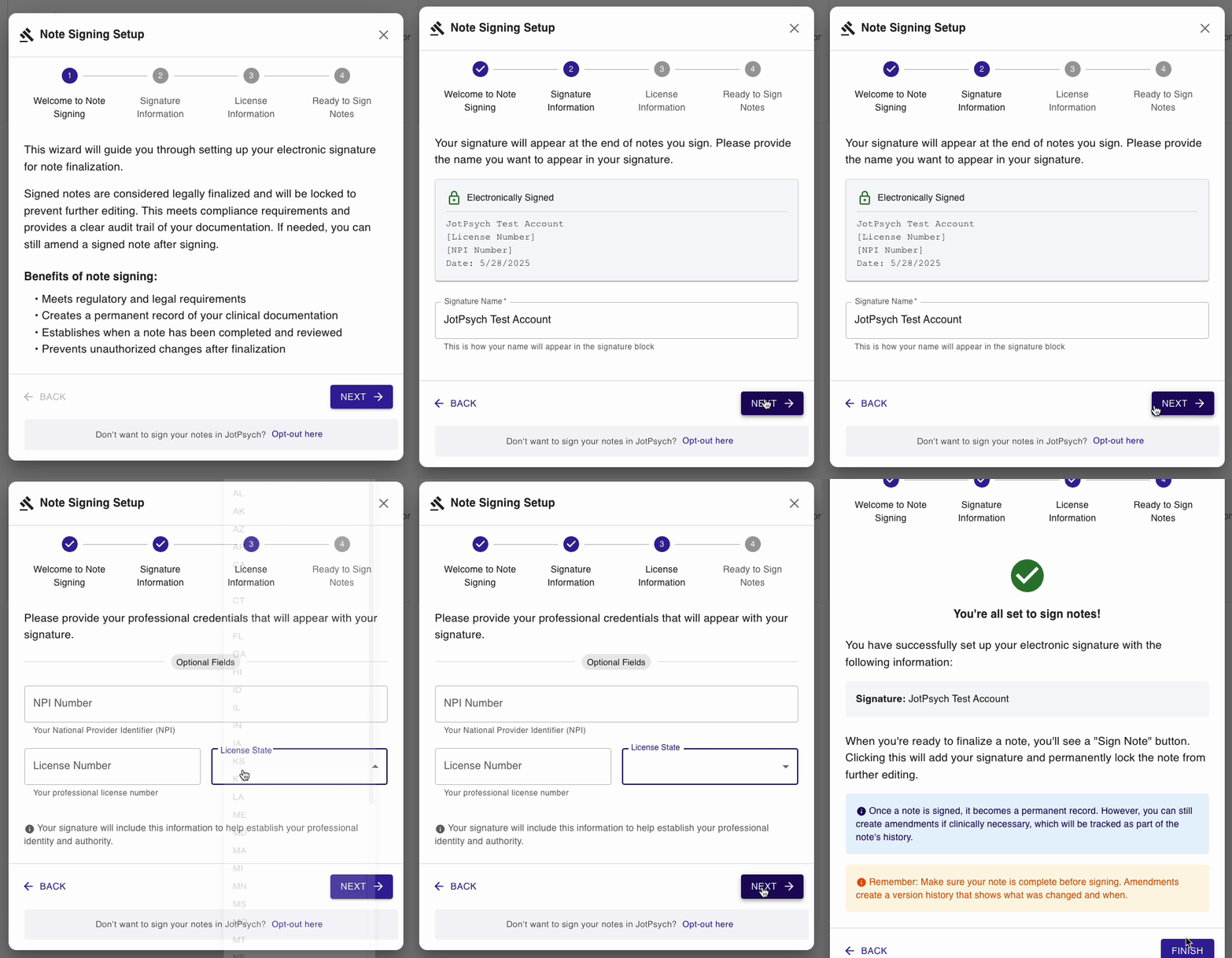
You will be prompted to set up note signing on the Notes tab.
If you have not been prompted you can also navigate to account settings by clicking on the icon with your initial / picture in the upper right corner of the screen, clicking features on the lefthand panel and clicking enable note signing
To set up Note signing you will need to complete 3 steps:
Enter / confirm your name (this will be the signature that appears on your note)
[Optional] Provide your license number, NPI number, and license State
Begin signing notes!
How to Sign a Note
Complete your progress note as usual.
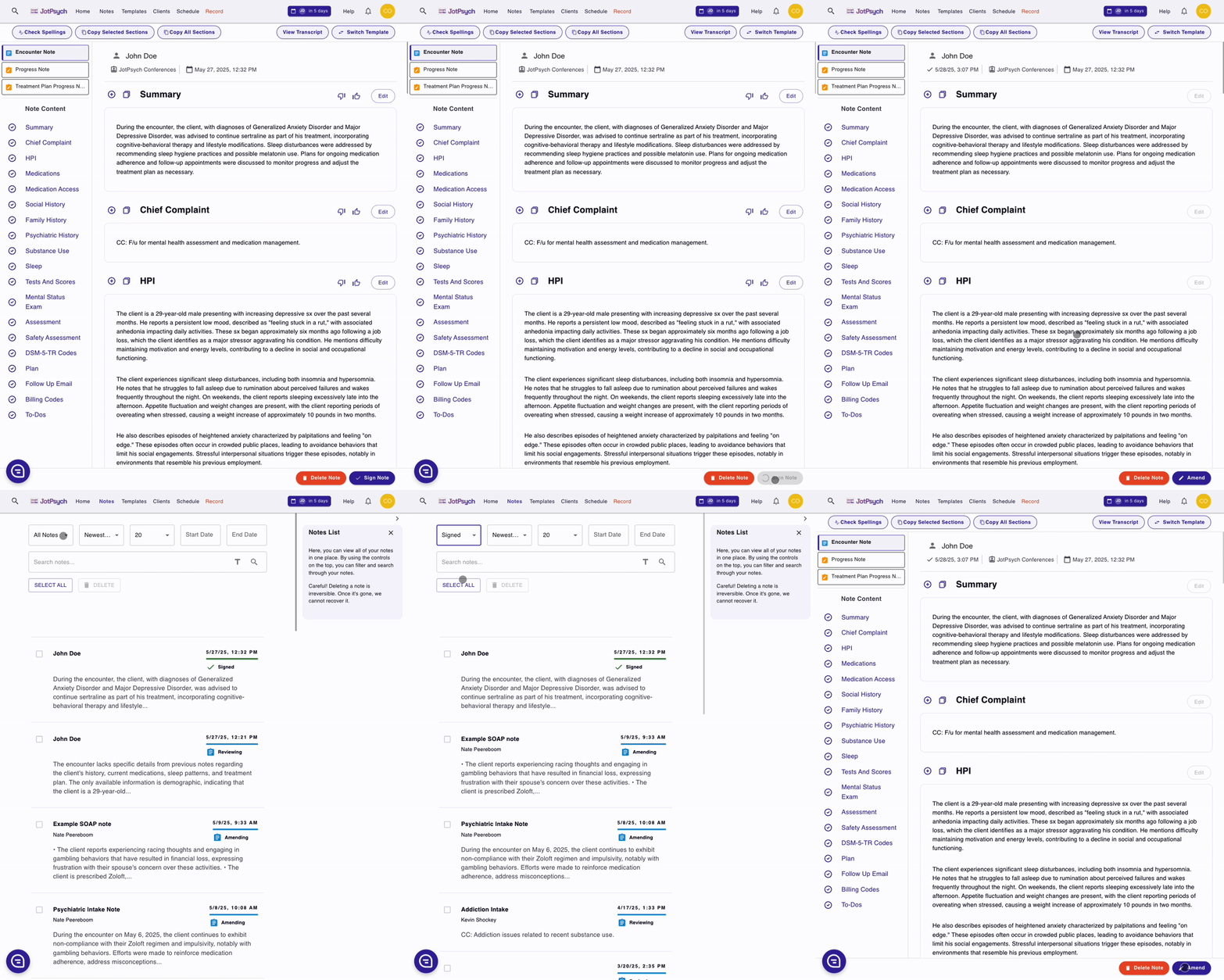
Click the Sign & Lock button at the top of the note.
Confirm that you’d like to sign — this will lock the current version as the finalized copy.
View your signed notes by filtering by signed on the notes page
You can still return and edit the note later, but:
The signed version will remain viewable and unchanged
Your latest edits will be saved as a new version on top of the locked one
FAQs
Can I edit a note after signing it?
We recommend checking that your note is complete and accurate before signing, as this version will remain locked and viewable. All future edits will be tracked as amendments
Is this required?
No — this feature is optional. It’s designed for teams that use JotPsych as their system of record or need signed documentation for compliance.
How do I turn this feature on/off?
Go to account settings by clicking on the icon with your initial / picture in the upper right corner of the screen
Click features on the left hand panel
Finally, click on disable note signing to turn this feature off
Still have questions? Click the chat button in the bottom right corner of your screen — we’re happy to help