
How to Use JotMeet (Video Visits)
Why use JotMeet?
See patients over video without leaving JotPsych -- no separate video tool, no switching between apps
Recording starts automatically when you join -- one click to join the call and start recording, so you never forget to hit record
AI notes from the live session -- your clinical note is generated directly from the video visit conversation
Picture-in-picture -- your patient stays visible in a floating window while you navigate the rest of JotPsych
How to run a telehealth visit in JotPsych
STEP 1: Schedule a telehealth appointment
Go to your Schedule and create a new appointment (or edit an existing one).
Check the "Telehealth (virtual session)" box.
JotPsych will automatically create a secure video room for that appointment.
Make sure your patient has a phone number or email on file -- the video link is included in their appointment reminder automatically.
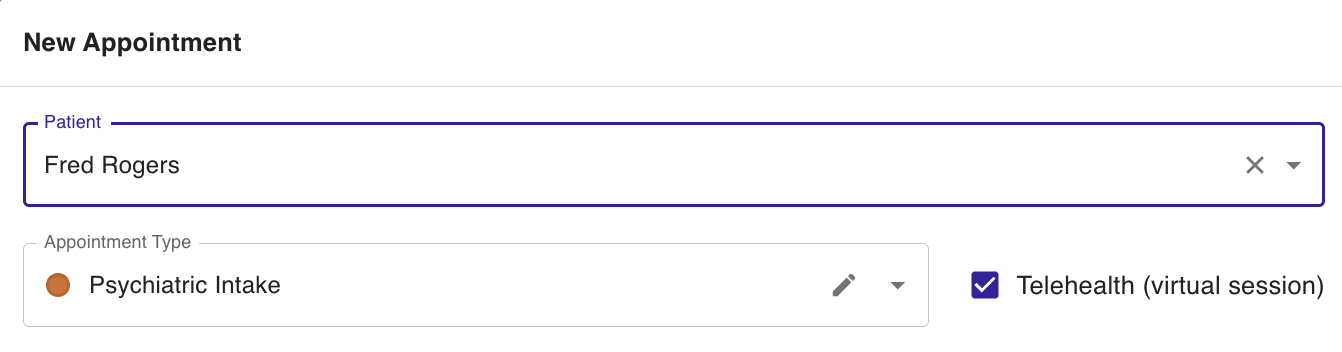
Tip: Create a telehealth appointment type
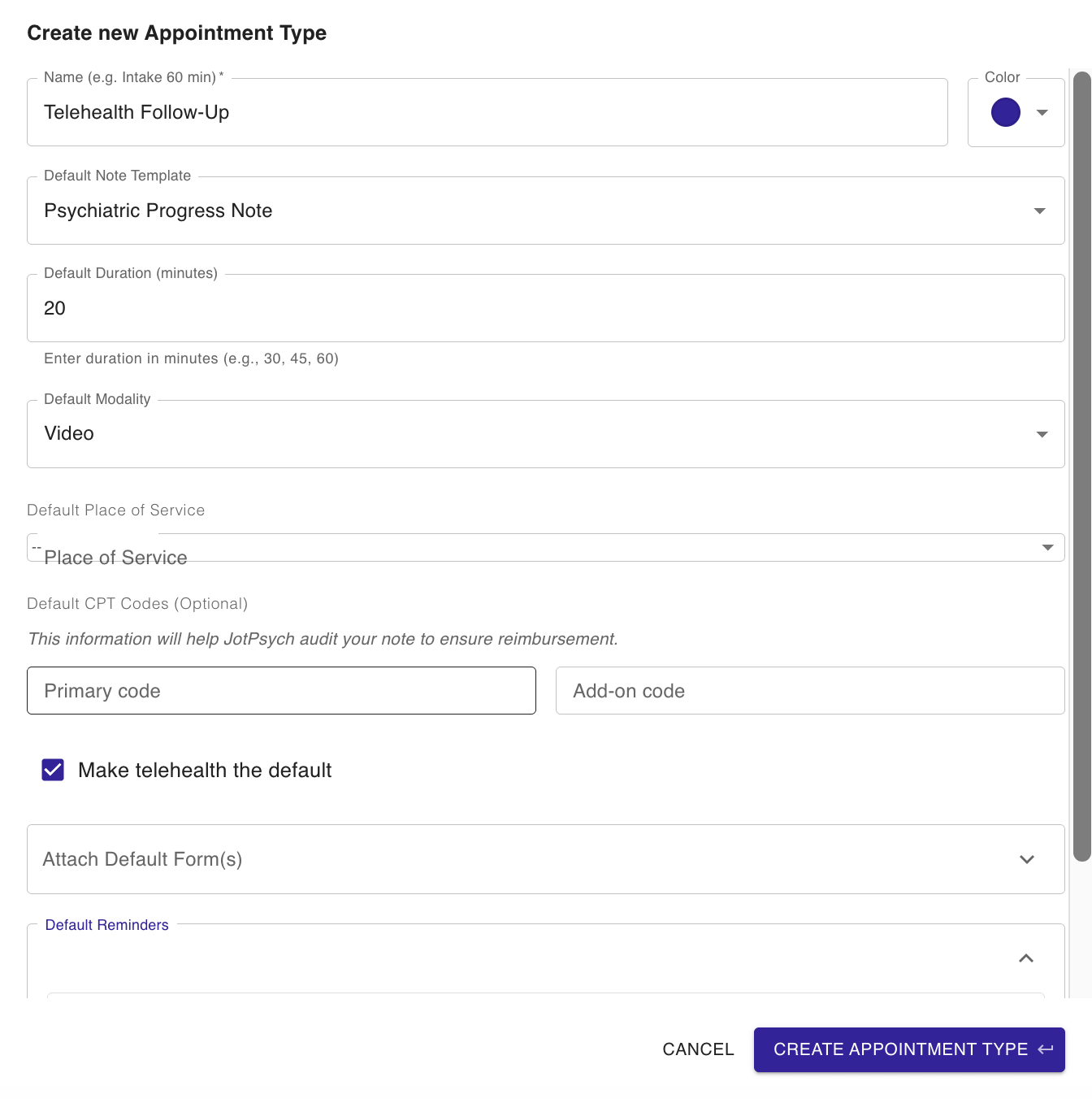
If you regularly see patients over video, you can create an appointment type with telehealth already enabled. That way, the "Telehealth (virtual session)" box is pre-checked every time you schedule that type of appointment -- no need to remember to select it manually.
To set this up:
Go to Schedule and click Appointment Types (or navigate to your appointment type settings).
Create a new appointment type (e.g., "Telehealth Intake" or "Virtual Follow-Up").
Check the "Telehealth (virtual session)" box within the appointment type settings.
Save. From now on, any appointment you create with this type will automatically have telehealth enabled.
This is especially helpful if most or all of your sessions are virtual.[Screenshot placeholder: New appointment form with telehealth checkbox highlighted]
STEP 2: Join the call and start recording
When it's time for the session, navigate to the appointment on your schedule or the patient's page.
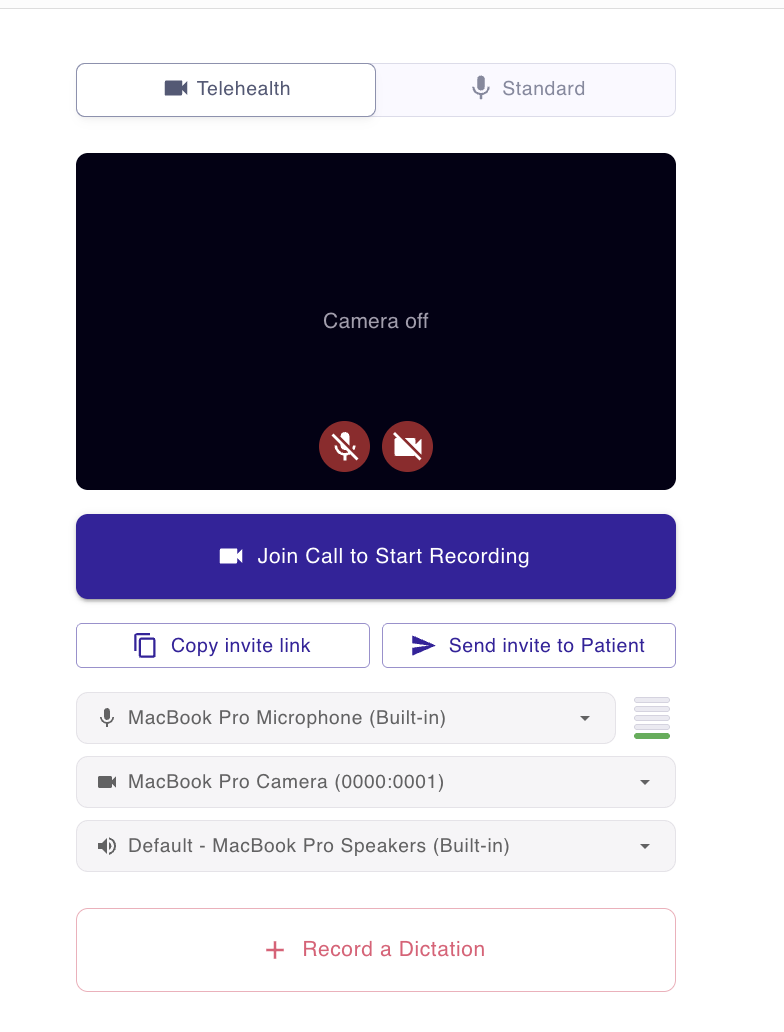
Click "Join Call to Start Recording."
This does two things in one click: joins the video call AND starts recording. There is no separate step to start the recorder.
You will enter the room first. Your patient will request to join, and you'll see an Admit button to let them in.
STEP 3: During the visit
Picture-in-picture: Your patient stays visible in a floating window while you navigate JotPsych. You can review patient history, check prior notes, prescribe, or do anything else without leaving the call.
Screen sharing: You can share your screen during the session if needed.
Chat: You and your patient can exchange text messages during the call.
STEP 4: End the visit
Once you stop recording, press generate note to get your note from the session, just like any other encounter.
Edit, review, and sign the note as usual.
How your patient joins
Your patient receives a video link in their appointment reminder (via text or email, depending on what contact info is on file). When they click the link:
They land on a join page -- no app download required, it works in their browser.
They click "Join Session."
They wait in a lobby until you admit them.
If your patient doesn't receive the link, check that they have a phone number or email address on file and that an appointment reminder is set up. You can also send them a link from the recorder.
Adding JotMeet to your plan
Solo clinicians:
You can add JotMeet from your subscription settings.
$29/mo per clinician. First month free. Cancel anytime.
Practice administrators:
You can add JotMeet for specific clinicians on your team from your subscription settings.
Choose who gets it. Each clinician you add will receive an email walkthrough.
Non-admin clinicians:
If you don't manage your practice's subscriptions, you can request JotMeet from within JotPsych. We'll notify your administrator on your behalf.
Already on the Everything plan? JotMeet is included.
Good to know
Telehealth is tied to your calendar. You can't start an ad-hoc video call. It requires a scheduled appointment with the telehealth box checked.
The video room is available 15 minutes before and 30 minutes after the appointment.
Video is HIPAA-compliant. JotMeet is powered by Daily.co, a HIPAA-compliant video provider. All sessions are encrypted.
The standard recorder still works for in-person sessions. JotMeet doesn't change anything about your existing workflow for face-to-face visits.
FAQs
My patient didn't receive a video link.
Check that the patient has a phone number or email on file, and that an appointment reminder is configured. The video link is included in the reminder, so if no reminder was sent, no link was sent.
Can I use JotMeet on my phone?
JotMeet works best on a desktop or laptop browser. Mobile support may be limited.
Can multiple people join the same session?
Yes. JotMeet supports multiple participants. Speaker view and grid view are both available.
Can I share my screen during a session?
Yes. Screen sharing is available during telehealth sessions.
What if my internet connection is poor?
JotMeet uses adaptive streaming, which adjusts video quality based on your connection. If you experience issues, try turning off your camera to reduce bandwidth, or switch to a wired connection.
If you have any questions or issues with JotMeet, please reach out to support@jotpsych.com.