
How To set up JotPsych's E-prescription: JotRx
What is JotRx?
JotRx is JotPsych’s e-prescribing feature, powered by DoseSpot.
It allows prescribers to prescribe medications from within JotPsych and keep patient prescribing records connected to the patient chart.
Before you start
You will need:
A personal cell phone number (must be mobile — not a practice/office number. This is to get a text message for identity verification).
A government-issued ID (driver’s license, used by DoseSpot for identity verification ).
Your NPI.
If prescribing controlled substances: your DEA number(s).
A credit card (used by DoseSpot for identity verification).
How to purchase JotRx (required before setup)

JotRx must be added to your subscription before you can connect your practice to DoseSpot.
Go to My Practice > Clinicians.
Click the pencil icon next to your name (or next to any clinician who will e-prescribe).

Scroll to the bottom and add JotRx ($69).
Click Save.
If you don’t see JotRx as an option, refresh the page. If it still doesn’t appear, contact JotPsych support.
How to connect your practice to DoseSpot
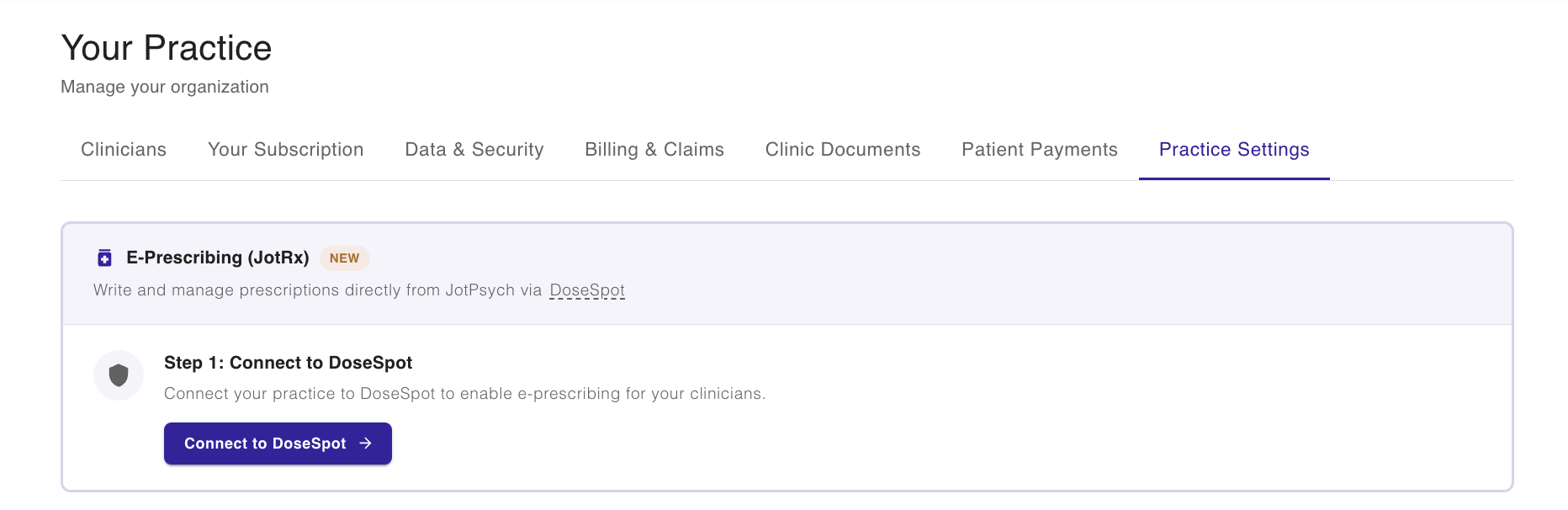
Go to My Practice > Practice Settings.
Scroll down until you see Connect ePrescription.
Enter your practice information (name, address, etc.).
Click Save.
Even solo prescribers will create a “practice/clinic” record in DoseSpot.
How to set up your prescriber profile (clinician info)
Click the circle with your initials in the upper-right corner.
Go to Account Settings / Clinician.
Scroll down to the e-prescribing / DoseSpot section.
Enter your clinician details (including your NPI). Address should be your office.
Select whether you prescribe controlled substances.
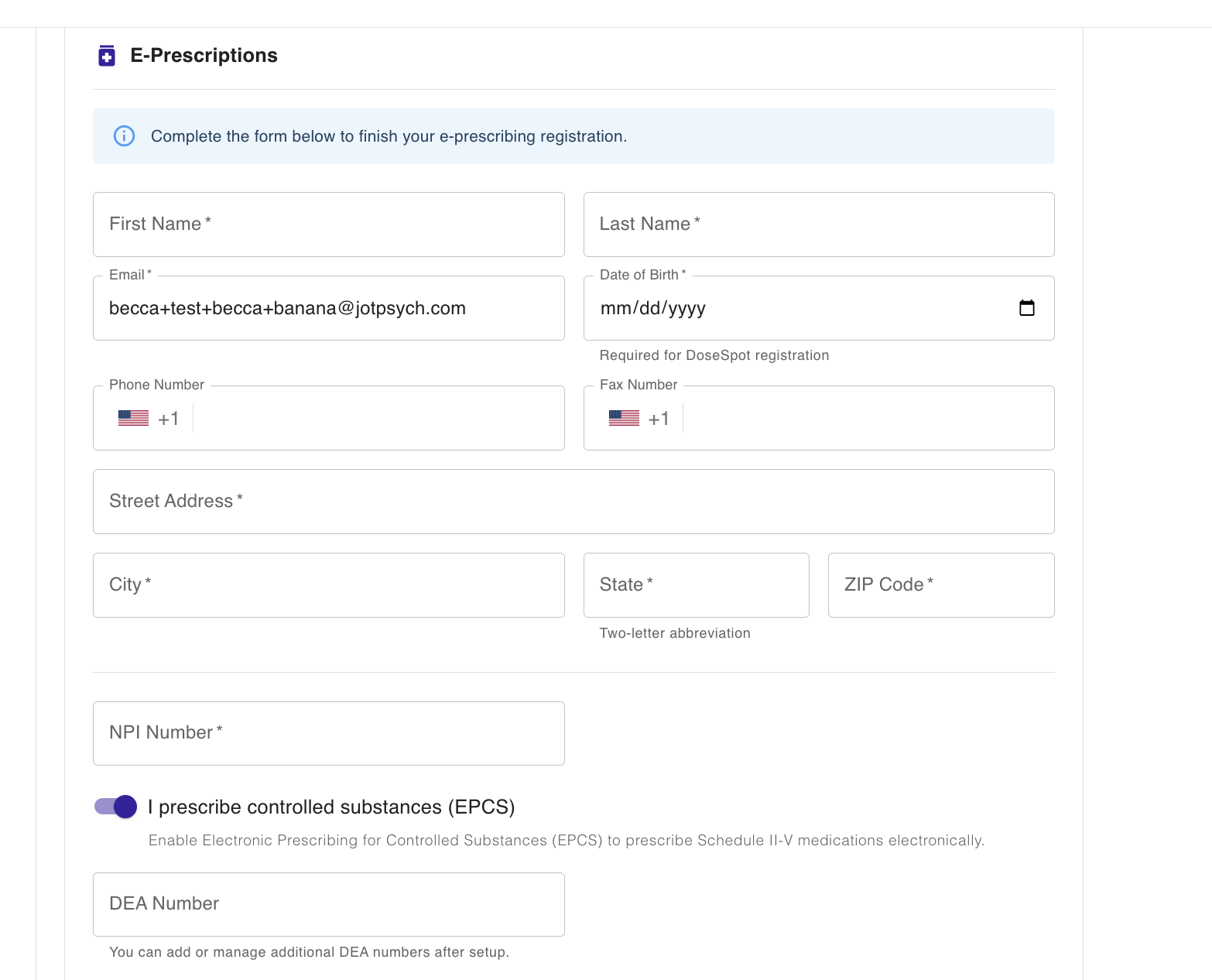
Click Save.
This is also where you’ll later see the button to open DoseSpot.
DoseSpot onboarding: legal agreement + identity verification
When you open DoseSpot for the first time, there are two required steps. Often the legal agreement comes first, followed by identity verification.
Step 1: Sign DoseSpot’s legal agreement
Click Open DoseSpot (from your clinician settings).
Review and accept DoseSpot’s legal agreement when prompted.
Step 2: Complete identity verification (identity proofing)
DoseSpot will ask you to enter personal information before sending any text messages:
Legal name
Date of birth
Home address
Mobile phone number (must be your cell phone)
Social Security Number
Credit card information (for identity verification)
After you hit Next, you’ll complete photo verification:
Photo of your government-issued ID
Photo of your face/selfie
Controlled substances: two-factor authentication (Duo)
This section only applies if you prescribe controlled substances.
Start two-factor authentication
Refresh your DoseSpot page.
Click the notification bell (it may show a red badge).
Open the notification and begin two-factor authentication.
Enter your cell phone number (must be mobile).
You will receive two text messages (important)
DoseSpot/Duo sends two texts, and it’s easy to open the wrong one:
Text #1: requests you install the Duo Mobile app.
Text #2: includes a link for two-factor authentication.
You must open Text #2 to continue. This is where you complete the Duo setup and get the passcode you need.
Enter passcode + create PIN
Return to DoseSpot.
Enter the passcode (from the two-factor authentication link / Text #2).
Create your PIN when prompted (you are creating it for the first time).
Once complete, you are set up for controlled substance prescribing.
Prescribing for a patient in JotPsych
Open a patient in JotPsych.
Go to the Medication section (on the patient page or recorder page).
Follow the prompt to connect the patient to e-prescribing / DoseSpot.
Enter required patient information (only once).
Once connected, the patient will open in DoseSpot automatically, and the patient will stay linked going forward.
FAQs
I purchased JotRx but don’t see “Connect ePrescription.”
Make sure JotRx is added to your subscription under My Practice > Clinicians (pencil icon next to the prescriber), then refresh and check My Practice > Practice Settings again.
I didn’t receive a text message during setup.
Confirm the phone number you entered is a personal cell phone number, not a practice or office number.
I got two texts during two-factor authentication — which one do I open?
Open the second text (the one that includes the two-factor authentication link). The first text is usually only for installing the Duo Mobile app.